
Quite a while ago I wrote about tethering the X-H2 to a MacBook using USB-C. A question I was asked was, “How about a second camera, can 2 be connected in this way?”
I’m pretty sure the Acquire App can only connect to a single camera at a time via USB-C. I know there are other possibilities, but I decided to go down the WiFi FTP route as I know it to be a reliable transfer method which, with the right configuration, could be used to send images anywhere in the world.
That said, I would probably not have gone this route had I not managed to pick up a used grip from MBP as the possible return from the speedier workflow would be unlikely to offset the price for the grip in the shorter term.
**********
I started this post back in March 2025, planning to flesh out configuration details – I forgot, and now things have progressed much further.
I now send direct from the camera to the agency using FTP direct to an “agent” that adds the caption & metadata before sending onwards to the press.
The truth is, looking at the downloaded manuals, there is not much I can add about settings and configuration of the transmitter grip; all I can add are a few thoughts and annoyances. Maybe I have some settings wrong, and a reader can point them out once I lay out these issues.
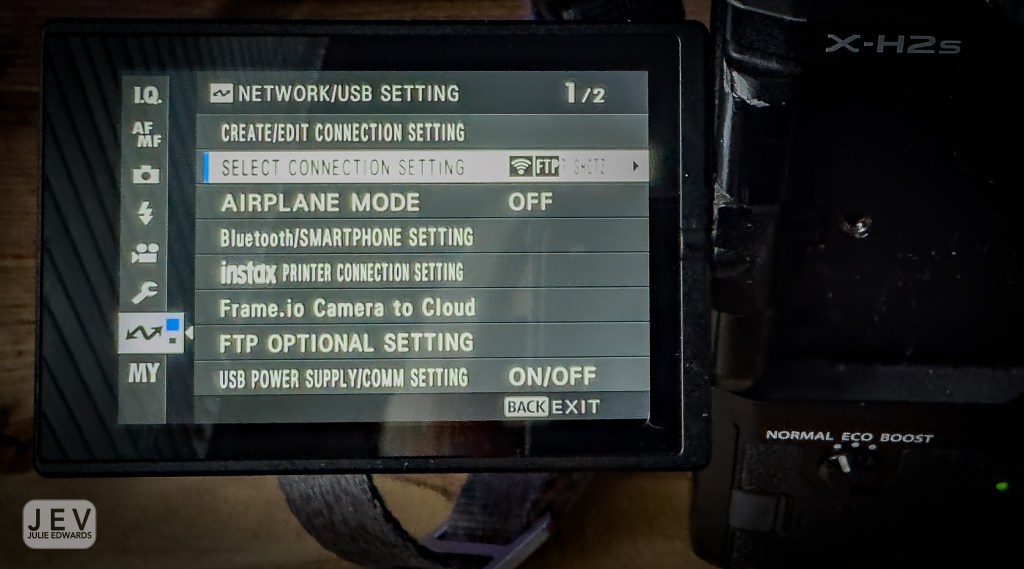
The setup of the connection (a 2-stage process) is quite straightforward. First, the connection to the network is created, and once that is confirmed, the connection to the FTP is created and confirmed.
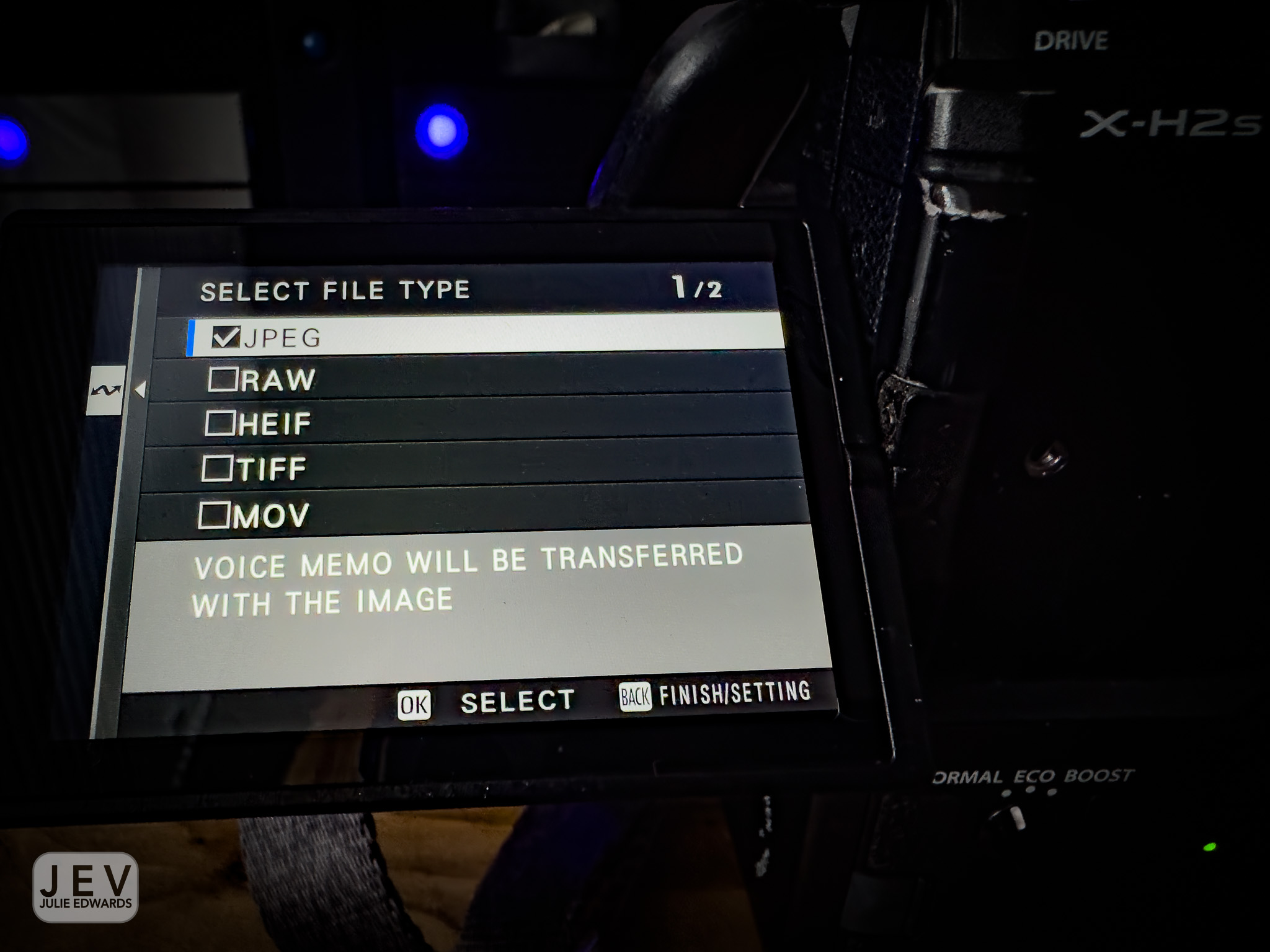
In the FTP optional settings, it is possible to select which file types are to be sent. This is where my first gripe is…
Like many users (I will use “many” as opposed to “most” which I feel it is), I set the save data options to separate; meaning the RAW files save on slot 1 (the fast slot) and the JPGs to slot 2.
To select the files to send;
- Press play
- Switch to slot 2
- Select the Transfer item from the menu
- Select the files
- Start the transfer
- Carry on shooting
After shooting the next batch, I go back to select more files to transfer and …
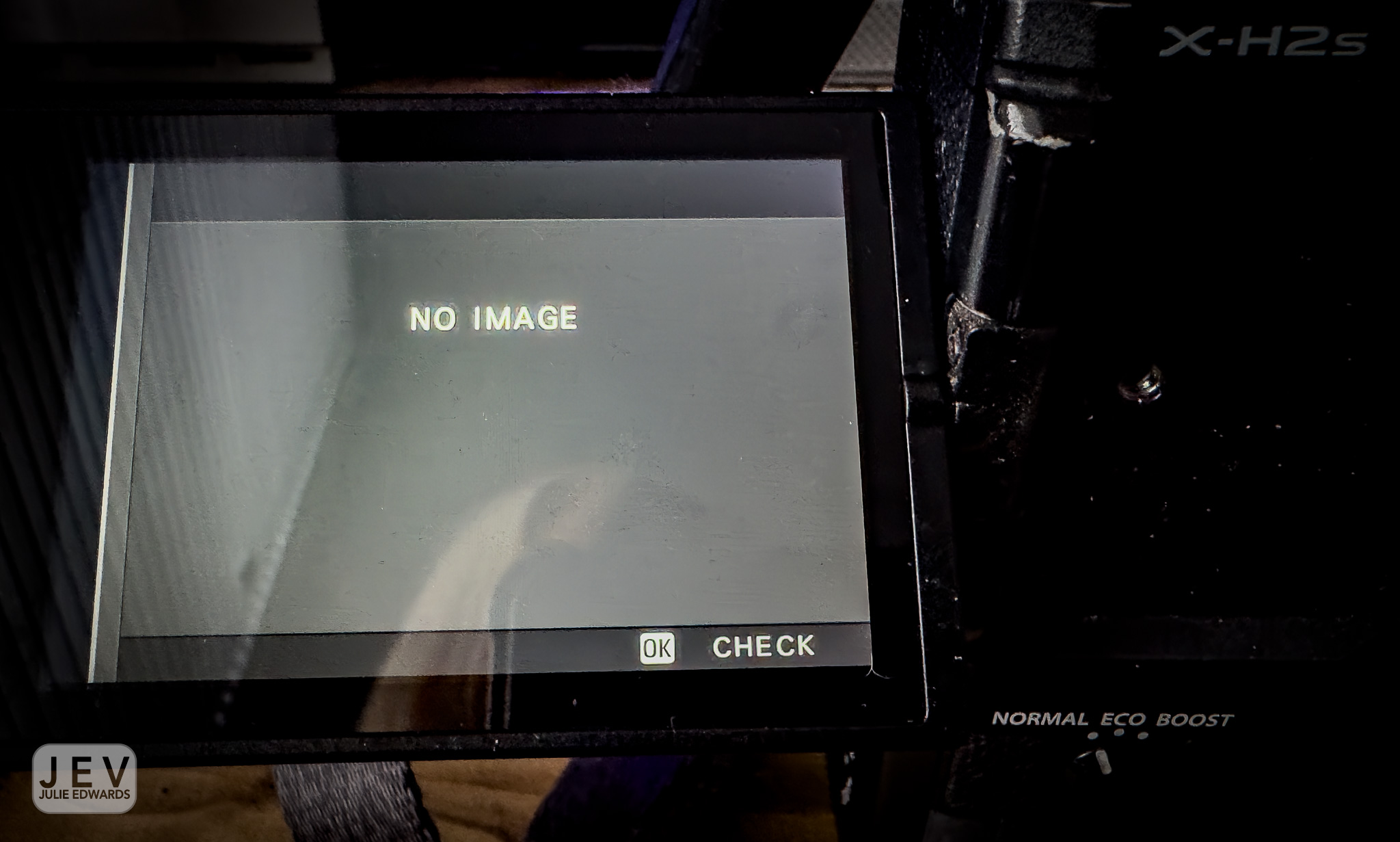
ARRGHHH.. I forgot to switch to slot 2 again! After Sending it switched back to the default slot 1 – if only it was possible to set the default to send from..
So;
- Switch to slot 2 again!
- Select the Transfer item from the menu
- Its now back at the start of the files and I have to remember which I have already sent
The fact that it “forgets” where the files are stored/being sent from is so annoying, especially as it is not easy to see what is sent.
I guess many might suggest – why not set JPGs on both slots and work with that?
When working live, most photographers do not send the full size JPG. Setting the image size to medium reduces the files size considerably whilst being more than adequate for publishing. Doing so requires that the full size RAW files are avaliable for a final edit following the end of the job as not all subjects are live – only those considered more important.
To many, this might seem pedantic? An extra button press or two, whats the issue? When shooting red carpets, the subjects can come thick and fast, with less than a minute between them. The simpler the button presses to send, the more chance of sending between each subject and the less chance of not sending someone.
After all this negativity, I want to end on a high. Other than the issue above the transmitter works seamlessly, as good as any of the other manufacturers. With a good signal and a good router, the images fly off the camera, not slowing down the shooting at all.
So; Is there a better workflow? Is there a way to reduce the button pressing to send images whilst working?
Let me know…. Please!
 Julie Edwards-X